Talo: A desktop application for team managers to allocate tasks efficiently.
00. Overview
An desktop for allocating task based on rules
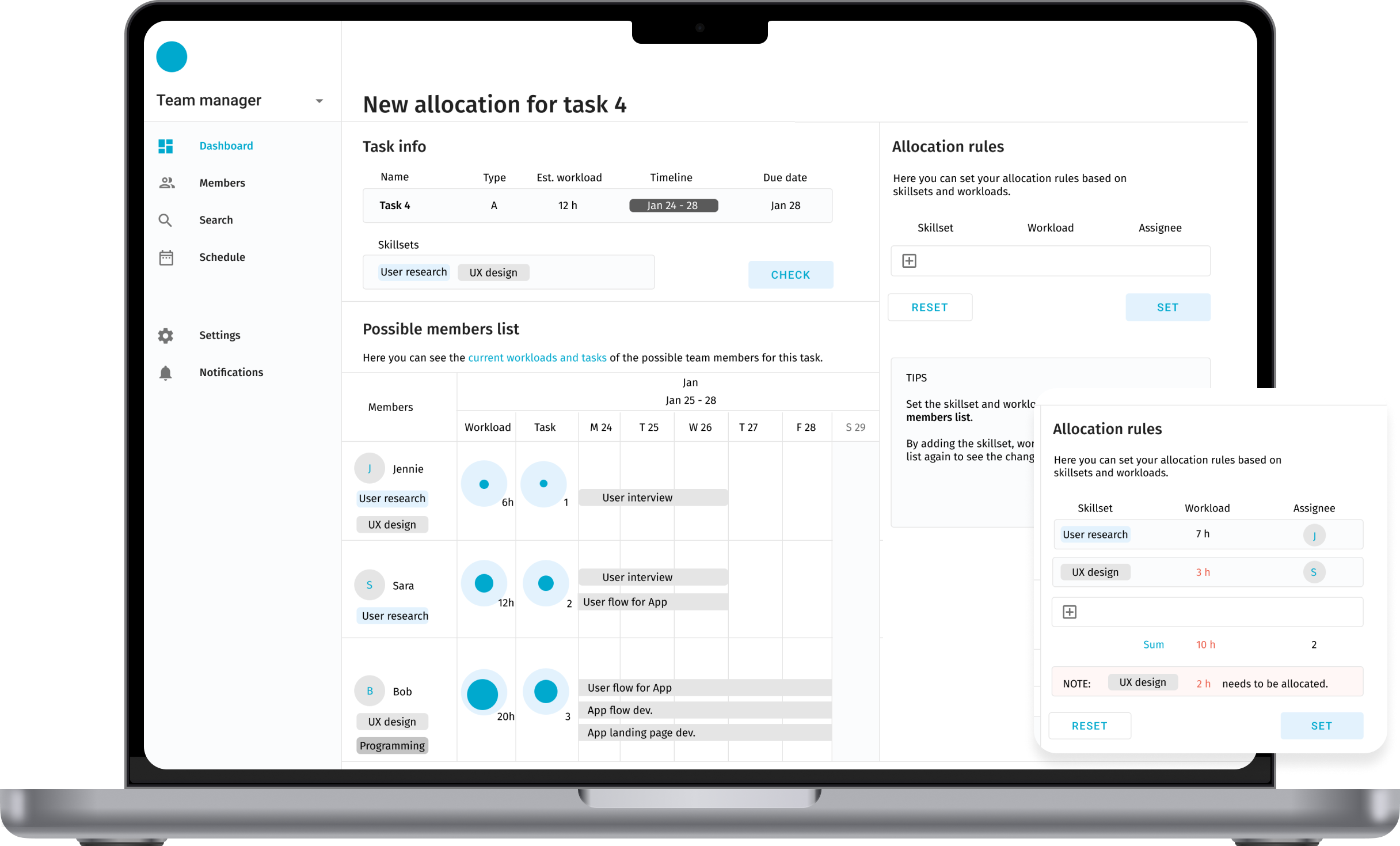
- Talo is a desktop app aimed at helping team managers create rules to allocate incoming tasks based on the task type, team member’s skillset, and their current workload.
- This is a design challenge.
Design process
- Discovery: Team manager case analysis, Customer journey
- Research: Competitive analysis, User flow
- Design: UI flow, Sketch iteration
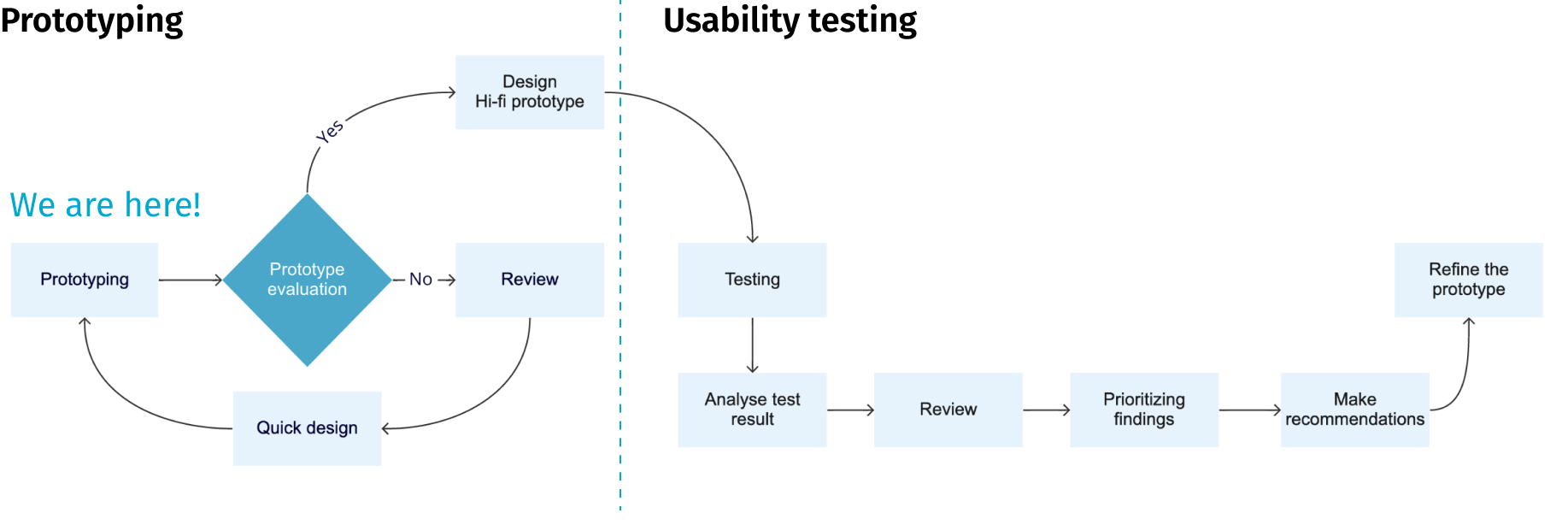
- NEXT STEP: Prototyping & Usability testing, Hi fi prototype, Testing
01. Discovery
Team manager case analysis
Team overview:
Each team member can have one or more skills (UX design, visual design, programming, UX research). If a team member is absent for the day, there needs to be a way to ensure that their tasks are still handled.
Goal:
Set rules for allocating the incoming tasks based on task type, team member’s skillset and their current workload.
Pain points:
Not knowing the possible incoming tasks.
Not knowing the skills of each member and their current workload.
Have trouble reallocating the task when the team member is absent.
Define the problem
Based on the pain points, I formed the research questions to better understand what are the problems that we are trying to solve. This questions also give me the direction to the following competitive analysis.
1. How might we create a clear task overview where team manager can easily find the possible incoming tasks?
2. How might we create a intuitive database shows the team members current tasks and workload?
3. How might we create a efficient allocation flow that helps manager set rules?
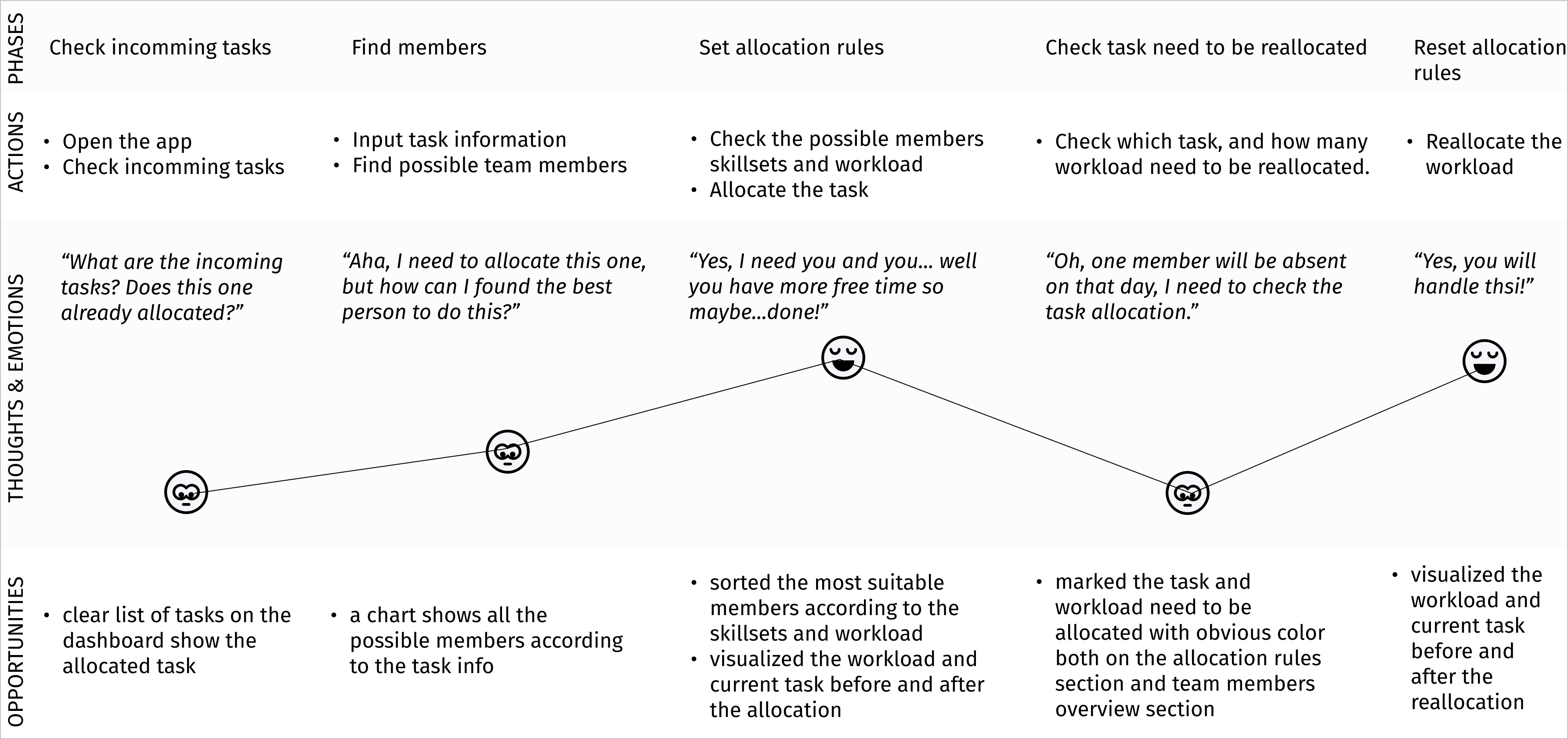
Customer journey
In order to gain inspiration and get familiar with task allocation desktop page, I made an competitive analysis on three task allocation apps. I focused on the two kinds of screens: Task overview, team members skillsets and workload overview.
Competitive analysis
In order to gain inspiration and get familiar with task allocation desktop page, I made an competitive analysis on three task allocation apps. I focused on the two kinds of screens: Task overview, team members skillsets and workload overview.
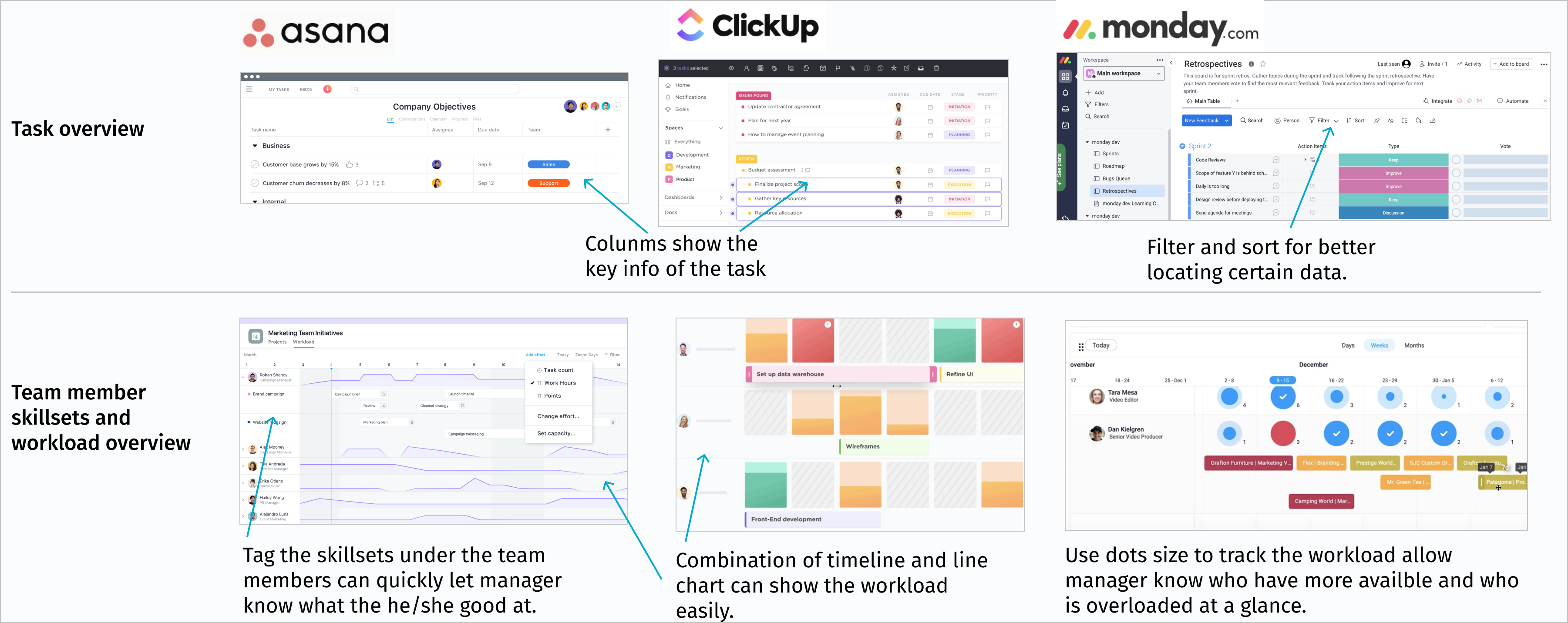
Insights
Simple and intuitive interface
The interface doesn't need to be very cool, but it needs to be simple and easy to learn because team managers use it every day.
Great data visibility in dashboar
Because tasks are usually related to time, task type, task workload, and task requirements, etc. Plain text can lead to team managers not getting key information. Combination of different views can be helpful.
Easy located key information
Team managers may be faced with a very large number of tasks at one time. Filter, sort, tag and search function can be helpful for Locating the certain task and members quickly.
User flow
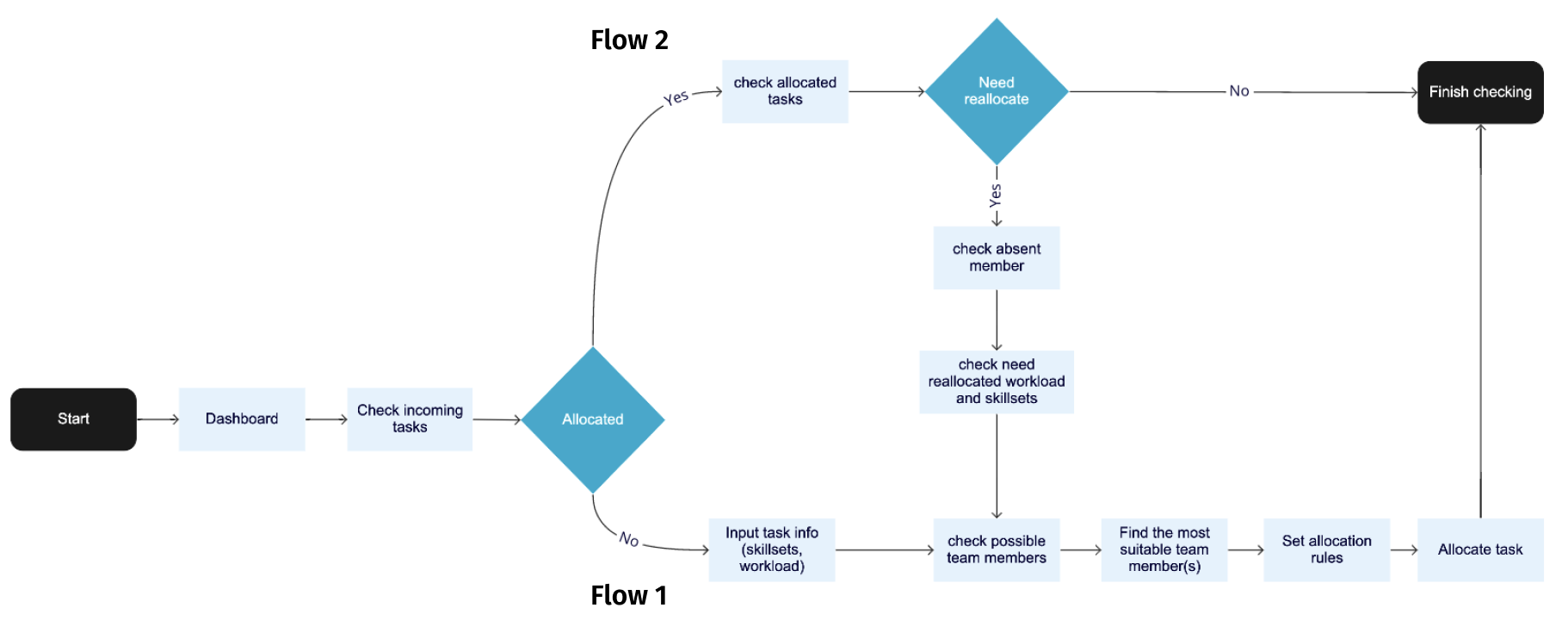
In order to better understand the full journey of our user - team manager, I map this possible user flow to visualise the decision points and user actions.
According to the customer journey, I split the flow into 2 small flows:
Flow 1: Set allocation rules for new task
Flow 2: Reset allocation rules (when task member is absent)
03.Design
Sketch
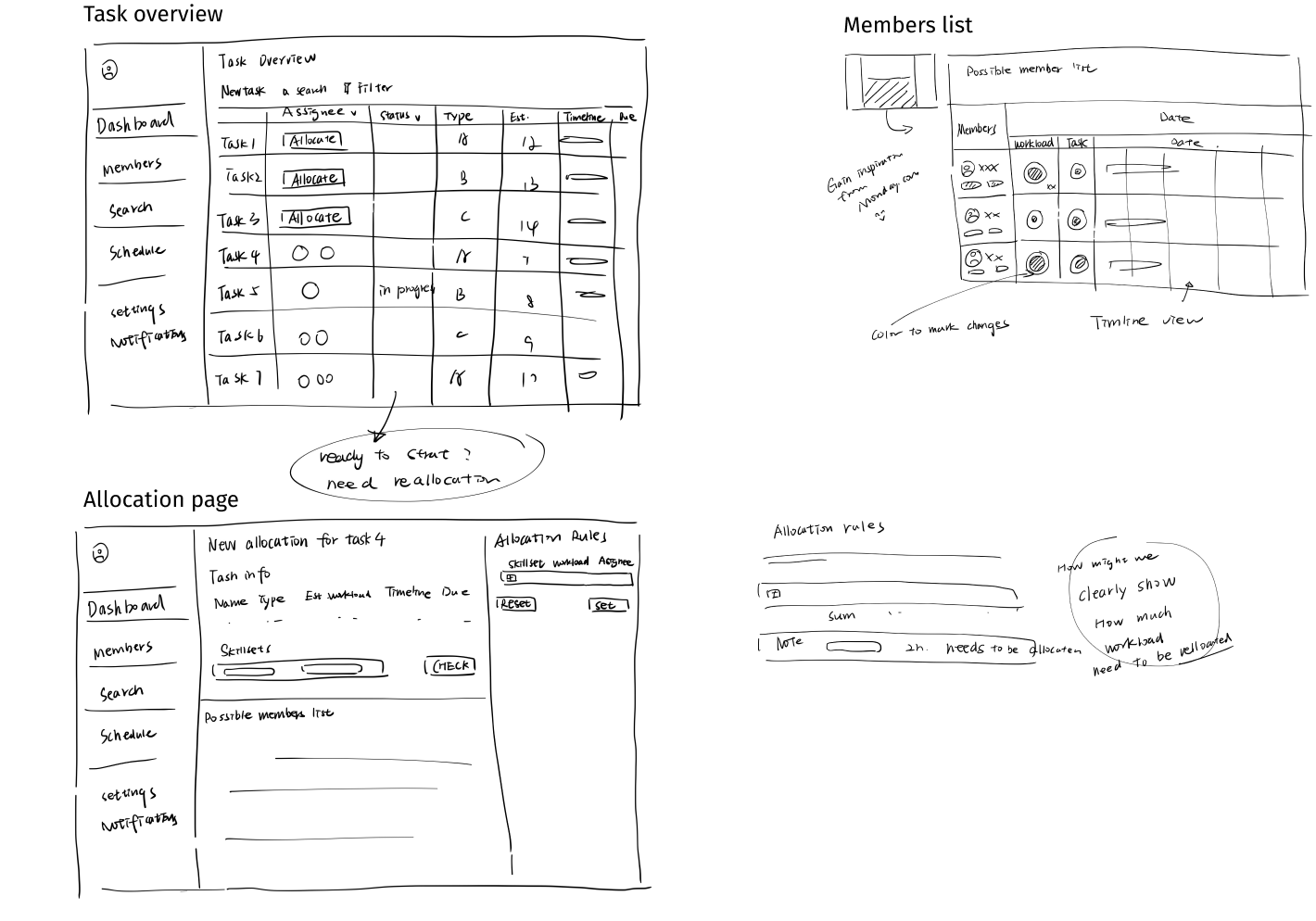
In order quickly document my ideas and draft my concept. I used paper and pen to make sketches to move forward. After 5 times iteration, I finally got all the interfaces done, then I move to Figma to create the prototype.
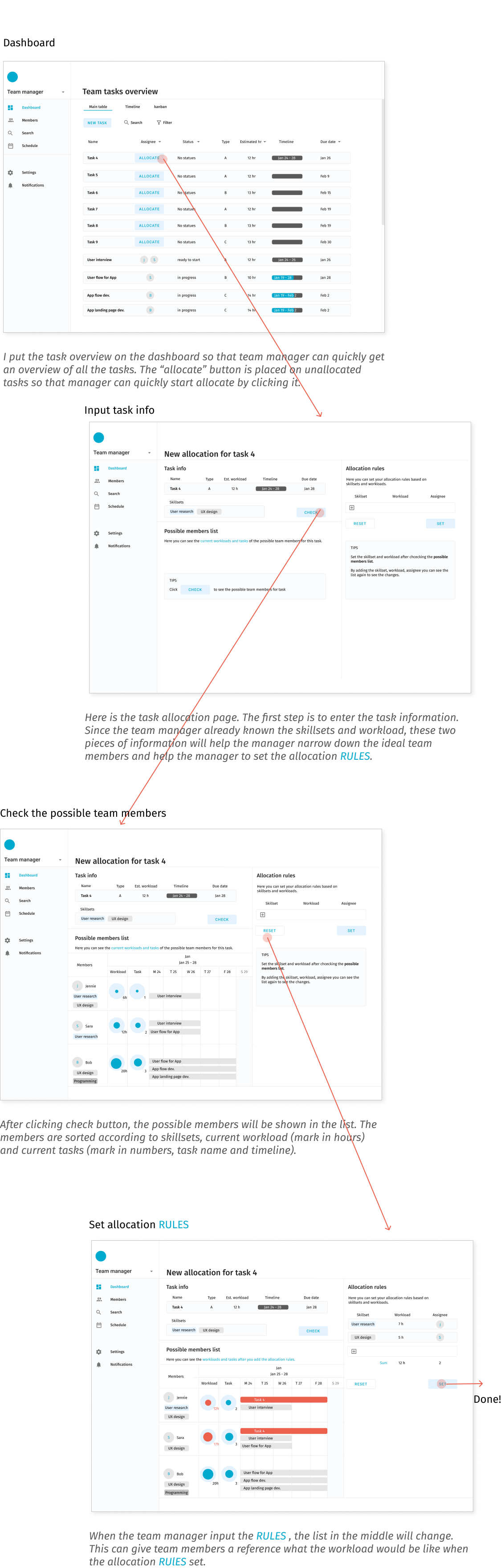
UI flow 1 - set allocation rules for new tasks
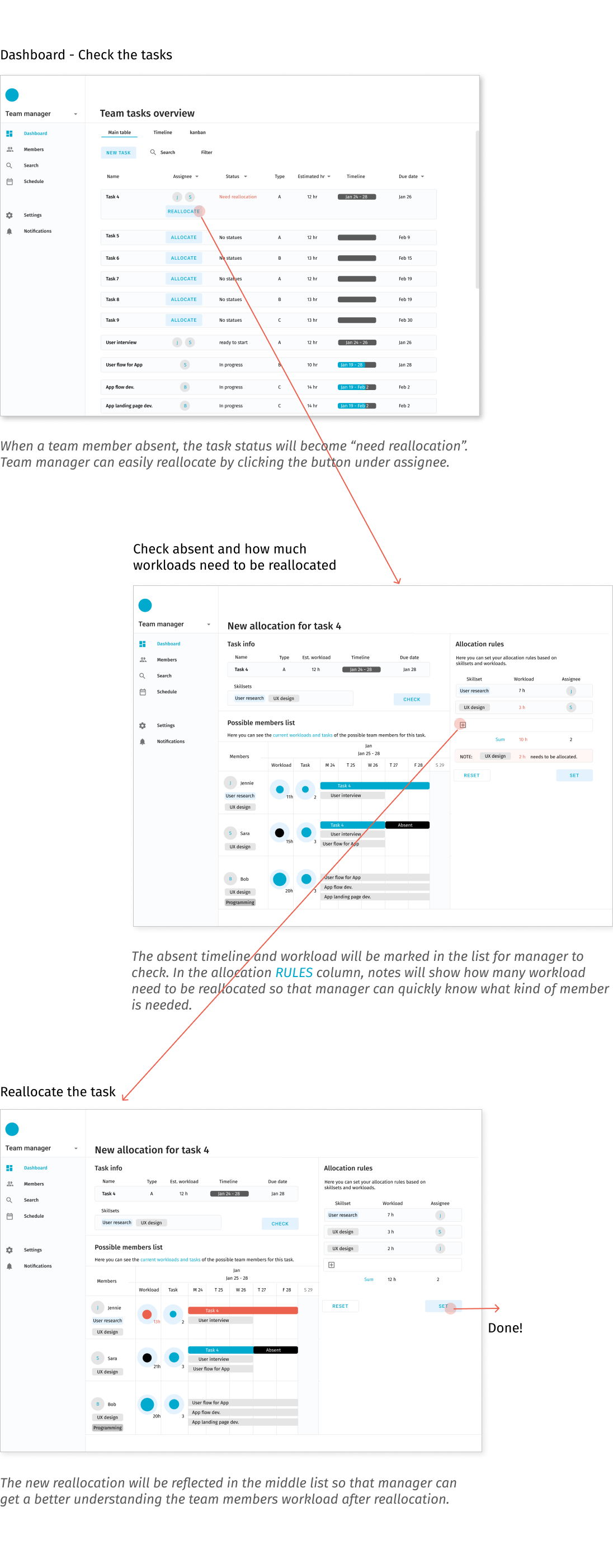
UI flow 2 - Reset allocation rules (when task member is absent)
Next Step
Flow for next step
The testing is for finding what we can improve in the product, the design opportunities, users’ behaviour and their preference.
For the testing plan, I would like to use moderated usability testing. First we need to list the tasks that contain the features we want to test. Then we need to recruit potential users (team managers) as the participants for testing. After that, we can guide participants to complete the test. For example, we give user a scenario that the user need to allocate the task to team members.